01 Introduction and Getting Connected
- Welcome
- Connect to https://labs.liveweb.sas.com
- What are we doing and why?
- About the lab environment
Welcome
Welcome to the November 2025 FANS meeting SAS Viya Administration hands-on activity!
In today’s session we will try a wide variety of SAS Viya administration hands-on tasks, in an on-demand educational SAS Viya LTS 2025.03 deployment. You are ENCOURAGED to experiment, try things your way, and decide what suits you best. It is perfectly okay for you to make different decisions about what to create and how to create it than other participants in this hands-on activity.
Connect to https://labs.liveweb.sas.com
Note: SAS Employees following this activity independently should reserve a collection using the link above under Overview. Then connect to the RACE Windows client over RDP in the normal way. The username to sign in to the Windows client is Student, the password is Metadata0.
Each participant in this activity should be given a login ID and a password.
-
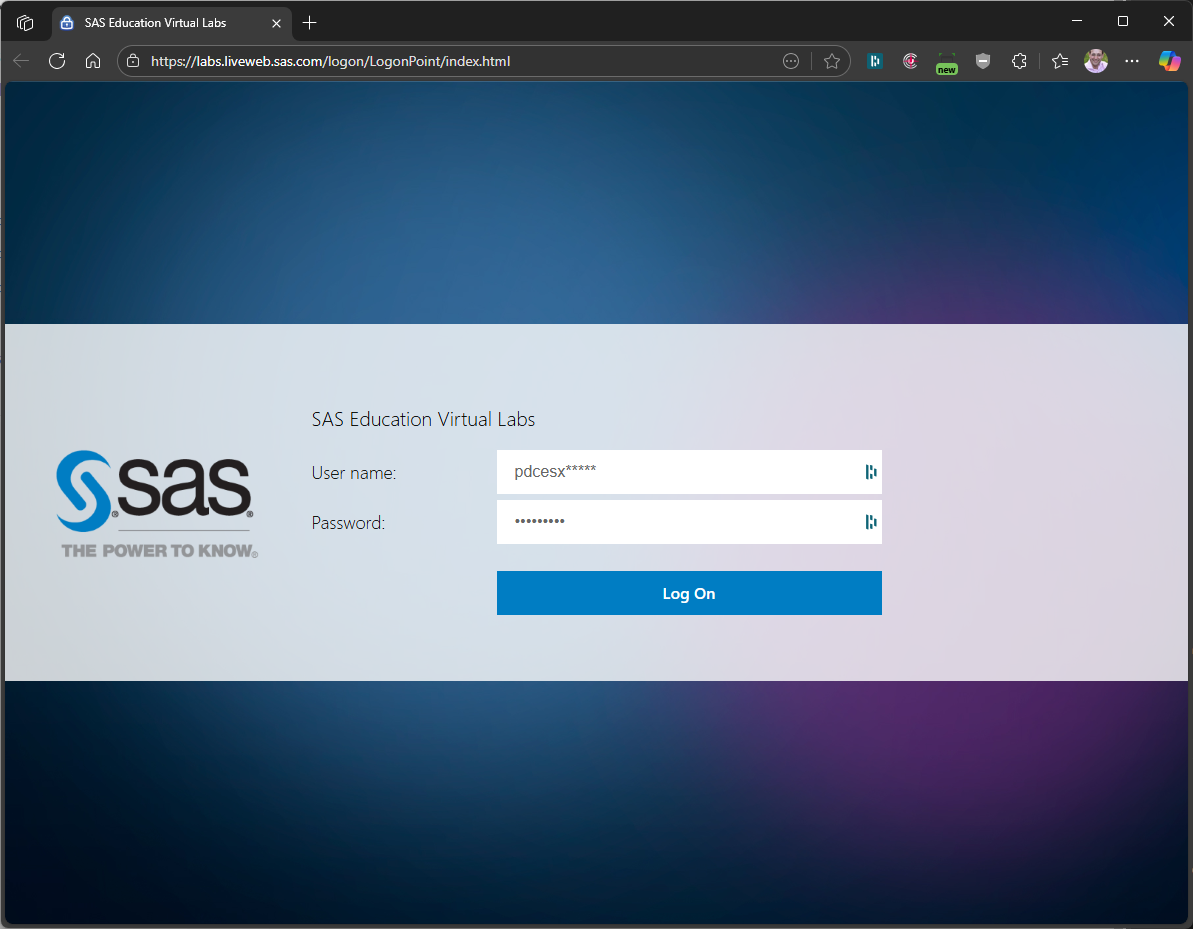
Browse to https://labs.liveweb.sas.com:
-
Type in the username and password that you have been assigned for this event (typically beginning with
pdcesx) and password that you have been given where indicated, and click Log On. -
Click on the icon labeled VM Desktop.
You should be logged in automatically. (You are connected to the Windows desktop as user Student, password Metadata0, but you should not be prompted for these credentials.)
-
Before proceeding, please wait about 3 minutes.
Please wait. After around 30 seconds or so, you will see a popup dialog box saying “Hands-On Lab Environment Status” and “Preparing environment, please wait”.
While the readiness scripts are running, there is a yellow LAB STATUS icon on the Windows desktop, and a Hands-On Lab Environment Readiness popup looks something like this:
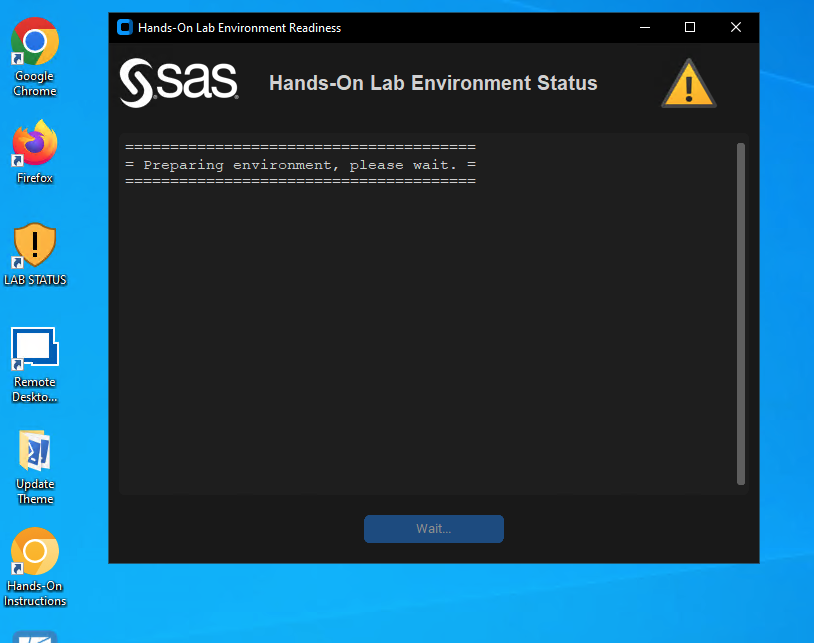
Please wait - they take a few minutes to run.
When the readiness scripts have finished, there is a green LAB STATUS icon on the Windows desktop, and a Hands-On Lab Environment Readiness popup looks something like this:
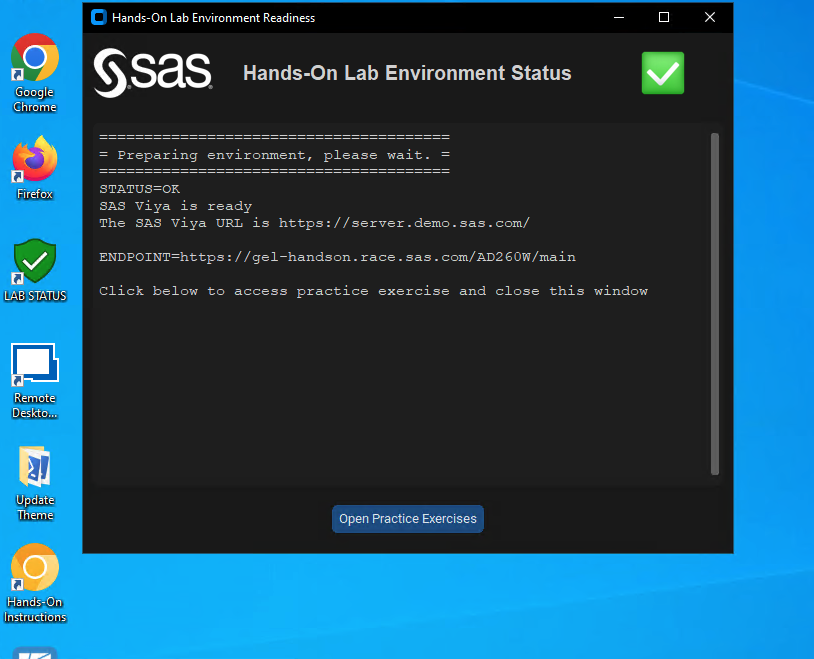
You can now continue to do the hands-on activity.
The ‘X’ button top right of the popup dialog does not close it. (I am not sure why not). You can minimise the dialog, or dismiss it by clicking the button labelled Open Practice Exercises. However, doing so opens a set of instructions for the main SAS Viya Administration Operations workshop, which is different from the activity we will follow, so you can close those exercises.
SSH to your Linux servers as cloud-user
-
Double click the SASViyaLinks shortcut on the Windows Desktop to open an HTML page with links to SAS Viya and other applications in your environment, in Chrome:
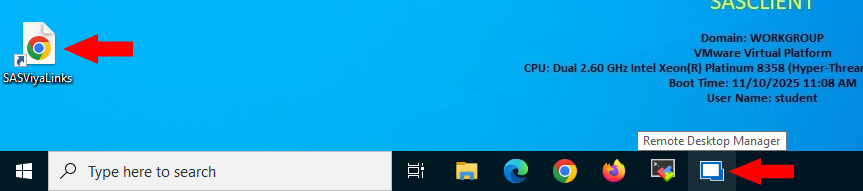
From there, click on any of the links to open their respective applications in the browser.
Later, you can sign in to SAS Viya as a SAS Administrator, username sasadm, password Student1.
Later, you can sign in to Grafana and OpenSearch Dashboards as username admin, password Student1.
-
Click the Remote Desktop Manager shortcut pinned to the Windows Taskbar.
It takes a few moments to open.
-
Click ‘server - SSH’ and ‘Open session’ to connect to server as cloud-user (or you can just double-click ‘server - SSH’):
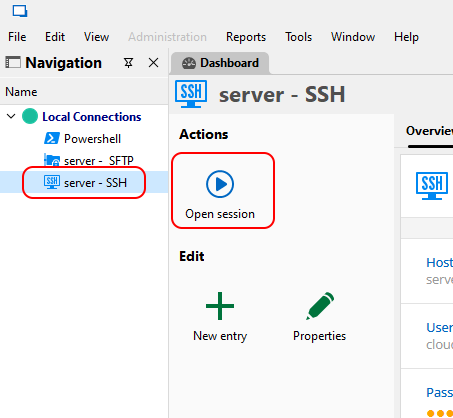
cloud-user is a non-root user which was used to install Kubernetes, SAS Viya and most other things in the environment. cloud-user’s password is lnxsas, but we have saved it in the connection details, so you don’t usually need it.
-
We will repeat instructions like this later in the activity too, but in case you want to use the SAS Viya Command Line Interface for something of your own, you can sign in to the sas-viya CLI as a SAS Administrator called sasadm, password Student1:
sas-viya auth login -u sasadm -p Student1or
/opt/pyviyatools/loginviauthinfo.py
OpenLens
If you want to use OpenLens to view your Kubernetes cluster, double-click on the OpenLens icon on your Windows client machine’s desktop.

It takes a few moments to to open. When it opens click ‘Browse Clusters in Catalog’ and k3d-edu.
You do not have to authenticate. The kube config file (C:\Users\student\.kube\config) contains a certificate which provides authentication to the Kubernetes cluster.
In OpenLens, look at these pages to get an idea of the information presented on each one. Hover over things to see if they have tooltips.
- Cluster
- Nodes
- Workloads > Overview (change namespace from default to edu, which is the SAS Viya deployment namespace)
- Workloads > Pods
- Network > Ingresses (search for ‘env’ to find the ingress for SAS Environment Manager)
Question: How many SAS Viya pods are running in the edu namespace?
Answer: About 138 pods, but it varies over time
There is no other task to complete in OpenLens for now, just look around and see what you can find. Don’t delete or edit anything for now.
What are we doing and why?
You can learn to fly an airplane by taking pilot courses covering navigation, meteorology, air law and regulations, principles of flight, radio aids, human performance limitations, flight performance and planning, operational and emergency procedures, and principles of instrument flight.
Many pilots began by taking a half-day trial flying lesson. In one of these trial lessons, an instructor does the pre-flight safety checks, talks to air traffic controllers over the radio, starts the engine, taxis, takes off, gets the plane flying straight and level and then lets you take the controls for a while, under close supervision. If you like it, maybe you will book lessons and learn to be a pilot yourself. Even if you don’t take pilot training any further, you will understand more about flying than you did before.
This is your trial flying lesson for SAS Viya Administration. It should be fun and you will get to do some interesting things with a ready-to-go SAS Viya deployment. We do not expect you to remember everything about what you did afterwards, or even necessarily why you did each step. There is no test.
If you find this activity useful, our workshops on https://learn.sas.com are a great place to learn more about how SAS Viya is designed, how it works, how to deploy it, how to administer it, and of course how to use it. There, you can find courses that match your experience level which will discuss why you might perform some of the tasks we will perform in this activity.
So today is a chance to have a little taste of SAS Viya Administration, and to learn by doing.
We will focus on performing hands-on activity tasks to give you a feel for what you can do and how by actually doing it. We won’t have many slides.
While doing this hands-on activity you feel confused about what we are doing and why. That’s okay! By all means ask, but don’t expect a lecture as a reply - we will keep the session moving in preference to having a long discussion.
Give it a try, see what makes sense and have fun!
We have very well designed, expert-led courses covering all of those things available in https://learn.sas.com. We maintain tightly-focussed, topic-specific learning paths such as the SAS Administration Learning Subscription which can help you find the training material you need quickly, and take you from beginner to expert in your chosen learning path in an efficient and thorough way.
About the lab environment
- Environment: AD260W SAS Viya Administration Operations in Exnet with fast-forward scripts already run. SAS Employees can reserve it in RACE using this URL: http://race.exnet.sas.com/Reservations?action=new&imageId=793536&imageKind=C&comment=FANS%20AD260B%20EXNET%20fast-forward%20run&purpose=PST&sso=AD260W&schedtype=SchedTrainEDU&startDate=now&endDateLength=3&discardonterminate=y. Customers can access the same environment in the AD260W SAS Viya Administration Operations course in learn.sas.com.
- This collection has one Windows client machine, plus one 32-core Linux server running an 8-virtual-node k3d Kubernetes cluster.
- SAS Viya namespace is
edu - The only Linux server is aliased
server.demo.sas.com - All passwords are
Student1with the exception ofcloud-userwhich islnxsas - SAS Viya Admin user is
sasadmpassword isStudent1 - Observability tools are installed
- Links to all web apps are in SASViyaLinks.html on Windows client desktop
- Fast-forward scripts for lessons 02 and 03 of the SAS Viya Administration Operations workshop have already been run.
Continue to 02 Project Groups, Folders and Libraries